Hawkeye is a commercial plugin. It comes with a business licence, on every server it covers. It isn't part of the free, non-commercial Sluurp, but it can be bought on its own as well.
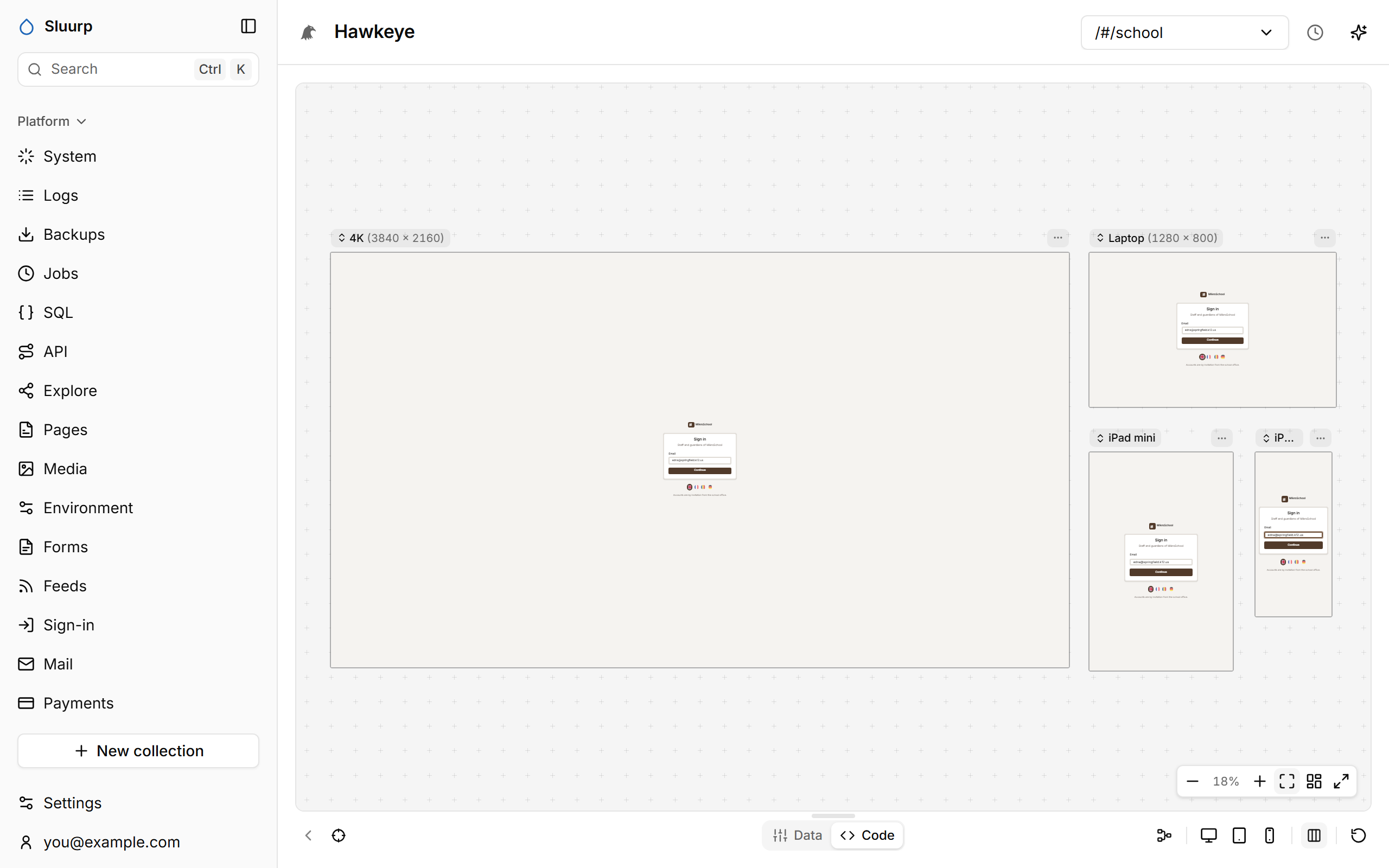 Features include: - Frames for every device, where a click or a keystroke in one happens in all - A graph of the page's components and the data each one reads - The code and the data behind any part you target - An editor for the whole app beside the page it draws ## Frames kept in step What you do in one frame happens in all of them: links, clicks, hovers, typing, scrolling. Only the frame you're working in writes to the server, so a message is sent once. - Pick a width in the bar below, or **Multi** for all your [devices](/docs/admin-ui#preferences) at once. - Drag with the middle mouse button to move around; Ctrl and the wheel to zoom. - The screen menu at the top goes to any page of your site, or to **Signed out**. ## Graph **Graph** shows the page as its components, with the data each one reads. Hold a component to see it; hold longer to pin it as a live window you can click, type in and resize. 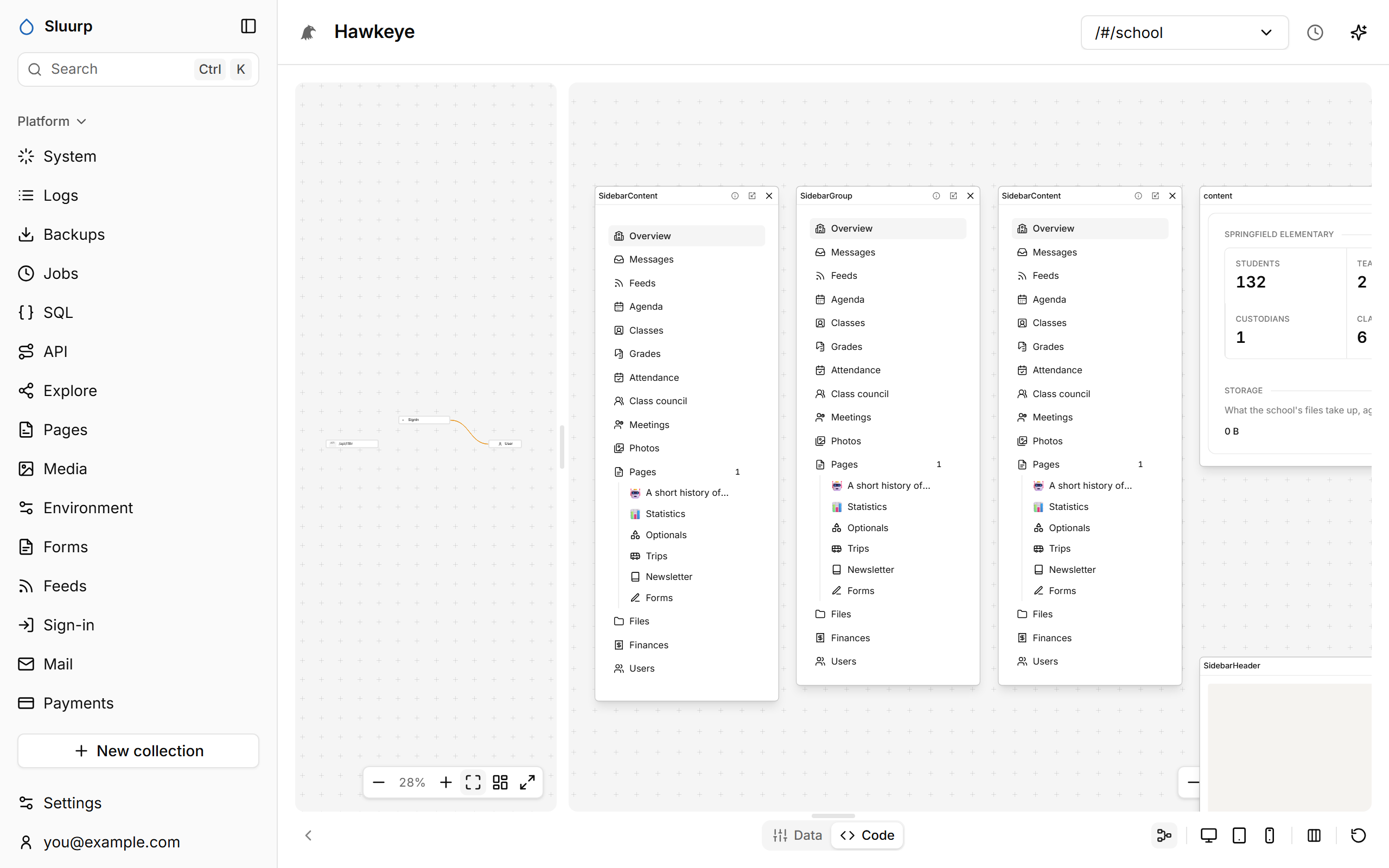 - **+** unfolds a component, and a double-click shows only its flow. - The board on the right keeps pins from any page. - Each page's graph is kept as you leave it. ## Code and Data Turn on the target button and click a component. The **Code** tab shows the lines that render it; the **Data** tab shows the records, API answers and local state it displays. Point at a row and the parts showing it are outlined. Production pages don't carry the marks this needs. ## Source The **Source** tab is an editor for the whole app: its files as a tree on the left, the ones you open as tabs, and the one in front editable. A change is saved a moment after you stop typing, and the page above redraws from it, so you work on the page and its code side by side. When you target a part of the page, its file comes to the front. It opens every file an app is written in: components and pages (`.tsx`, `.jsx`, `.md`), modules (`.ts`, `.js`), styles, JSON and HTML. It can only reach files inside the app, and only while developing.